Web Mail Function ºô¸ô¹q¶l¥\¯à


Prefence Setting ³ß¦n³]©w

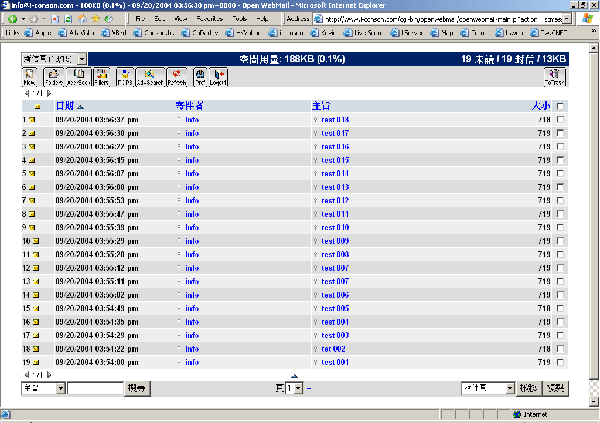
After login, customers can see some functions button at the top of the web mail main page.

·í«È¤áµn¤J«á«K¥i¦b¥ª¤W¤è¬Ý¨ì¥\¯à«ö¶s¤F.


Customers can manage there email through those function buttons.

«È¤á¥i¥Î³o¨Ç¥\¯àÁä¥hºÞ²z¹q¶l.


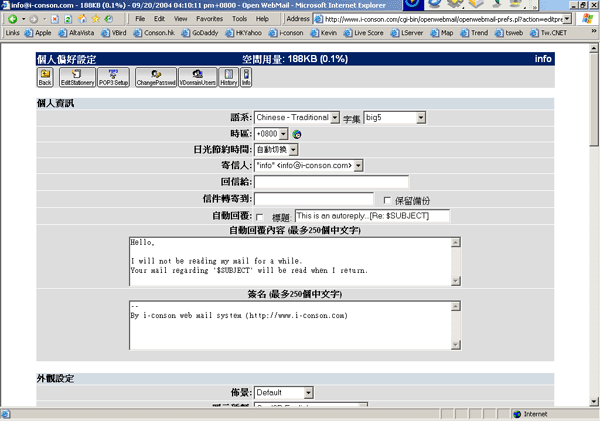
If customers want to change the display style, who can enter to setting page through the "Pre" button. After reach the setting page, customers will see there are many setting for personalize your display.

¦pªG«È¤á§Æ±æ§ïÅÜÅã¥Ü¤è¦¡, ¥i«ö¿ï³æ¤Wªº "³]©w" «ö¶s. ·í¶i¤J³]©w­¶®É, «È¤á¥i¥H¬Ý¨£«Ü¦h³]©w¤è¦¡.


There are 9 main topics for customers to perform there own setting.

Most Significant Setting:

Personal Information
1. Language
This is the setting for the display language, it will be change immediately after choose, but also need to save.

2.Charset
This is the setting for character setting. It will be change automatically when language is changed. Normally customers may not need to change it.

3. Auto Reply
If customers can't check mail or want to set a auto reply mail after received a mail, the function of "Auto Reply" can suitable for customers. It allowed users to set the "Subject", "Reply Text" and "Signature".

Display Preference
1. Style
This setting most likely color display setting.

2. Icon Set
This setting is for the language in icon.

Misc Options
1. NewMail sound notification
This setting for sound notify when enter the mail system, a voice will speck for new mail.


¦b³]©w­¶ùئ@¦³ 9 ¶µ³]©w

¤ñ¸û­«­nªº³]©w

­Ó¤H¸ê°T
1. »y¨t
»y¨t¬O¨Ñ³]©wÅã¥Ü»y¨¥ªº, ·í¿ï¾Ü¤§«á, µe­±·|¥ß¨èÂର©Ò¿ïªº»y¨t, ¦ý§A¤´¥²¶·­nÀx¦s.

2. ¦r¶°
¦b¹q¸£ùئ³³q±`³£·|¦h¹L¤@ºØªº¦rÅéÅã¥Ü¤è¦¡ªº, ¦ý³oùتº³]©w·|ÀHµÛ»y¨t§ïÅܦӦ۰ÊÅܧóªº, ¨Ï¥ÎªÌ¦b¤j³¡¥÷ªº±¡ªp¤U³£¤£»Ý­n³]©w³o¶µªº.

3. ¦Û°Ê¦^ÂÐ
¦pªG«È¤á¦]¬YºØ±¡ªp¤U¤£¯à¸g±`¬d¾\¹q¶l, "¦Û°Ê¦^ÂÐ" ¥\¯à¥iÀ°¤W¦£. ¦b¦Û°Ê¦^ÂÐ¥\¯àùØ, «È¤á§ó¥i³]©w¦Û¤vªº¼ÐÃD, ¤º®e¤Îñ¦W.

¥~Æ[³]©w
1. §G´º
³o­Ó³]©wÃþ¦üÅã¥ÜÃC¦âªºÂà´«.

2. ¹Ï¥ÜºØÃþ
³o­Ó³]©w¬O³]¸m¹Ï¥Üùتº»y¨¥.

¨ä¥¦³]©w
1. ·s«H³qª¾­µ®Ä
³o·|³]©w¥iÅý¥Î¤áµn¤J¹q¶l¨t²Î«á, ¥Ñ¹q¸£§@¥X·s¶l¥ó°e¹Fªº´£¥Ü.


Accounts Setting ±b¸¹³]©w

Customers can manage their email accounts. (first of all, your must be the administrative person of your email system)
Press "Pref" button after login, then press "VDomainUsers" at the top menu bar. (customers may not see the "VDomainUsers" if not use the administrative account to login)

«È¤á¥i³z¹LºÞ²z¤u¨ã¨ÓºÞ²z¦Û¤vºô°ìªº¨Ï¥ÎªÌ. (¤j«eÃD, §A¥²¶·¬O¸Óºô°ìªººÞ²z¤H­û)
«ö¤U "³]©w" «ö¶s, µM«á«ö "±b¸¹ºÞ²z". (¦pªG§A¬Oºô°ìºÞ²z¤H­û¤~¥i¥H¬Ý¨£ "±b¸¹ºÞ²z" ³o­Ó«ö¶s)


Then customer can click on the "Add User" button to make a new user account.
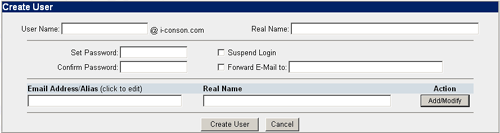
Customer will see a page of "Create User", then type the account name is the field of "User Name" and password in "Set Password" and "Confirm Password", then click "Create User".
Finally a new user name may display at the "Userlist of Domain xxxxx.com".

¦p­n¼W¥[¨Ï¥ÎªÌ, ¥i«ö "·s¼W¨Ï¥ÎªÌ" «ö¶s.
µM«á«K¥i¬Ý¨ì "·s¼W¨Ï¥ÎªÌ" ¤@­¶, ¶ñ¤J·s¨Ï¥ÎªÌªº¦WºÙ¦b "µêÀÀ¨Ï¥ÎªÌ" ªºªÅ®æùØ, µM«á¦A¦b "³]©w±K½X" ùضñ¤J±K½X, ¦A¦b "½T»{±K½X" ªºªÅ®æ¤º­«ÂÐ¥´¤@¦¸.
³Ì«á«ö "·s¼W¨Ï¥ÎªÌ", «K§¹¦¨·s¼W¨Ï¥ÎªÌµ{§Ç¤F.


Password ±K½X

Customers can reset their password through the function "Change Password" in "Preference".

¨C¦ì¨Ï¥ÎªÌ§¡¥i¥HÀH®É­×§ï¦Û¤vªº±K½X, ¥u­n¦b³]©w­¶ùØ«ö "Åܧó±K½X", ´N¥i¥H³]©w§Aªº±K½X¤F.


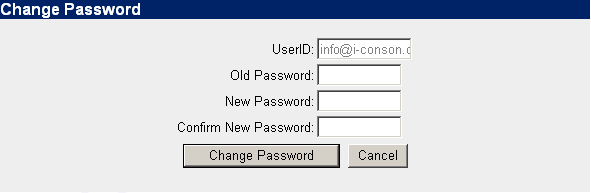
Customers will see some blank fields when entered the page "Change Password".
"Old Password", "New Password" and "Confirm New Password" must be supply to.
Press "Change Password" button when finish, then the password is changed.

·í¶i¤J³]©w±K½X­¶®É, ±N·|¬Ý¨£´X­ÓªÅ®æ. ¦b "±K½X", "·s±K½X" ©M "½T»{·s±K½X" ªºªÅ®æ¤º¶ñ¤J¸ê®Æ, ¦A«ö "Åܧó±K½X" «ö¶s, «K§¹¦¨Åܧó±K½X¤F.